
Article
Lesson content
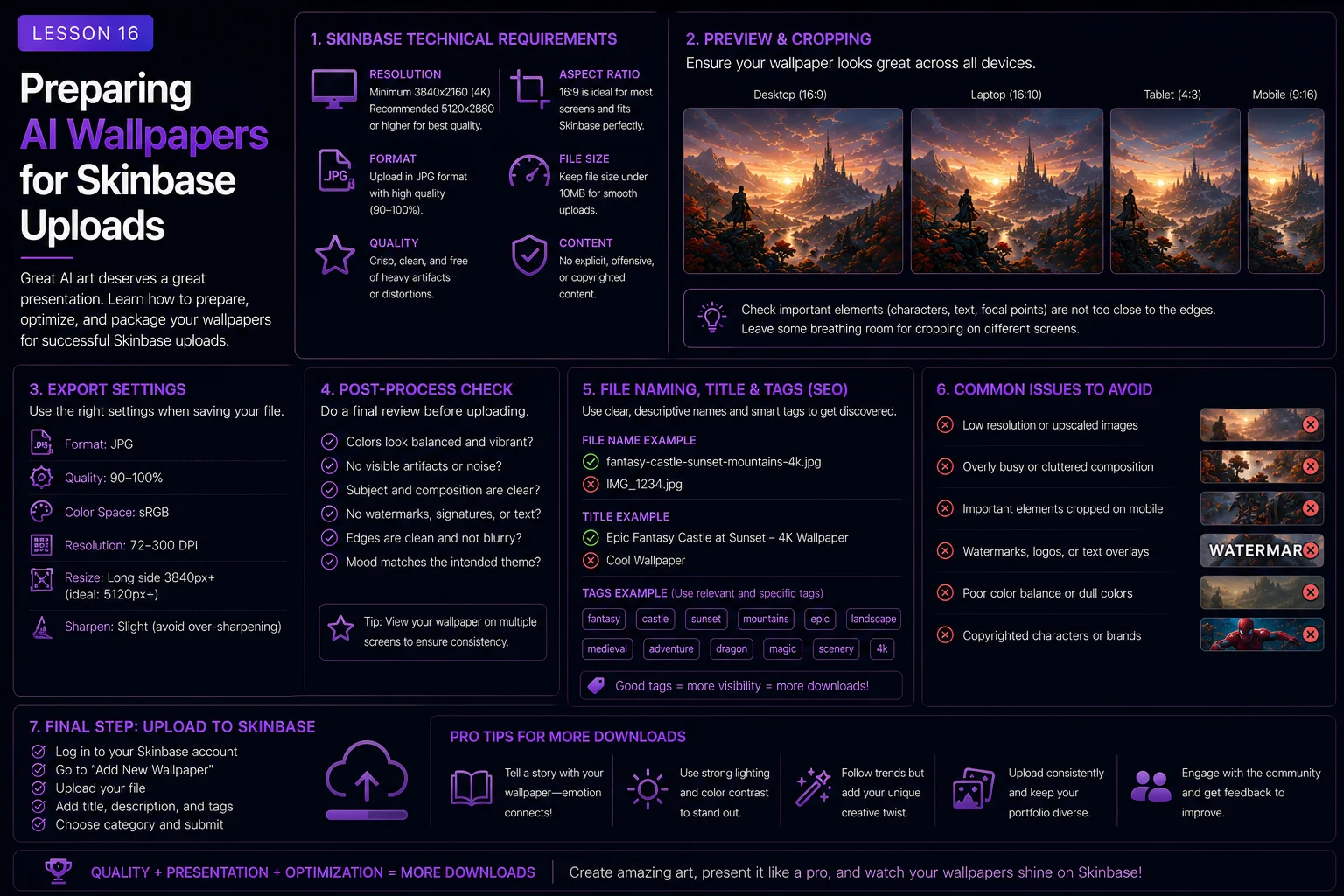
Preparing AI Wallpapers for Skinbase Uploads
Creating a good AI wallpaper is only part of the process.
Before an image is ready for Skinbase, it should be reviewed, cleaned, titled, tagged, described, and prepared like a finished artwork. A strong upload is not only a nice image file. It is a complete presentation that helps people understand, discover, save, and enjoy the wallpaper.
A wallpaper with a clear title, accurate tags, good resolution, clean details, and no obvious AI artifacts will feel more professional than an image uploaded too quickly.
In this lesson, you will learn how to prepare AI-generated wallpapers for Skinbase uploads.
Why Upload Preparation Matters
AI tools can generate impressive images quickly, but fast generation does not always mean the image is ready to publish.
Before uploading, you should check:
Is the image clean?
Does it work as a wallpaper?
Is the subject readable?
Is the composition strong?
Are there visible AI mistakes?
Is the resolution good enough?
Is the title clear?
Are the tags useful?
Does the description match the image?
A good upload respects the viewer. It gives them a polished image and enough information to understand what they are looking at.
Skinbase is not only a place to store images. It is a gallery and discovery space. The better your upload is prepared, the easier it is for others to find and appreciate it.
Step 1: Check Wallpaper Usability
The first question is simple:
Would someone actually use this as a wallpaper?
A beautiful image may still fail as a wallpaper if it is too busy, too harsh, badly cropped, or uncomfortable to look at full-screen.
Before uploading, check:
Is there enough clean space?
Is the image comfortable as a background?
Are the colors too intense?
Does the subject block too much of the screen?
Would desktop icons or mobile widgets still be readable?
Does the image look good at full size?
Does it still look good as a thumbnail?
A strong Skinbase wallpaper should work both as artwork and as a usable screen background.
Step 2: Inspect for AI Artifacts
AI artifacts are unwanted mistakes created by the generation process.
Common artifacts include:
Random text
Fake logos
Watermark-like marks
Strange signatures
Distorted faces
Extra fingers
Extra limbs
Broken hands
Cropped heads
Cut-off objects
Blurry important details
Messy architecture
Strange reflections
Noisy backgrounds
Overly smooth or melted details
Do not only look at the image in a small preview. Open it larger and inspect the important areas.
For character wallpapers, check the face, hands, eyes, feet, clothing, weapons, and body proportions.
For sci-fi wallpapers, check signs, panels, fake text, logos, machinery, and perspective.
For nature wallpapers, check foliage, water reflections, horizon lines, and strange repeated patterns.
For pixel art wallpapers, check whether the image is actually crisp or just blurred with a pixel effect.
Step 3: Decide Whether to Fix, Regenerate, or Reject
After inspection, choose what to do next.
If the image has small problems, you may be able to fix them with editing, cropping, or light cleanup.
If the image has major problems, it is usually better to regenerate with a better prompt.
If the image has too many issues, reject it and start again.
Small problems might include:
Slightly weak crop
Small distracting edge detail
Minor color adjustment needed
Background slightly too bright
Small artifact in an unimportant area
Major problems include:
Distorted face
Broken hands
Extra limbs
Large fake text
Obvious watermark-like mark
Main subject badly cropped
Composition does not work as wallpaper
Image is too low quality
A useful rule:
Do not upload an image just because the idea is good. Upload it when the final result is good.
Step 4: Check Resolution and Format
Wallpapers should have enough resolution to look good on modern screens.
Common desktop wallpaper formats include:
1920x1080
2560x1440
3840x2160
3440x1440
2560x1600
Common mobile wallpaper formats include:
1080x1920
1440x2560
2160x3840
For Skinbase, higher resolution is usually better as long as the image remains clean.
Check:
Is the image sharp enough?
Is the aspect ratio correct?
Does the image look good after cropping?
Did upscaling create artifacts?
Is the file format suitable?
Useful formats are usually JPEG, PNG, or WebP depending on your workflow and site support.
For photographic, painterly, or detailed images, JPEG or WebP can work well.
For pixel art, PNG or lossless WebP may preserve crisp edges better.
Step 5: Crop With Care
Cropping can improve a wallpaper, but it can also damage it.
Crop only when it improves the composition or removes unwanted edges.
Before cropping, ask:
Does the main subject remain complete?
Is the subject still readable?
Is there still breathing room?
Are important details too close to the edge?
Does the crop match the intended wallpaper format?
Good cropping can:
Improve balance
Remove bad edge artifacts
Create a cleaner aspect ratio
Strengthen the subject placement
Make the image more screen-friendly
Bad cropping can:
Cut off heads, hands, wings, or buildings
Remove useful negative space
Make the subject too large
Turn a wallpaper into a poster
Make the image feel cramped
If you know the target aspect ratio before generating, include it in the prompt. This reduces the need for heavy cropping later.
Step 6: Upscale Only the Best Version
Upscaling can make an image larger, but it cannot fix a weak image.
Upscale only after the image already has:
Good composition
Clean subject
Strong mood
Good lighting
Balanced colors
No major artifacts
Correct or usable aspect ratio
Do not upscale an image with obvious problems unless you plan to fix those problems first.
Upscaling a broken image usually creates a bigger broken image.
After upscaling, inspect again. Some upscalers can create strange textures, sharpen artifacts, or change small details in unwanted ways.
Step 7: Choose a Clear Title
A good title helps viewers understand the image quickly.
The title should describe the artwork, not the prompt process.
Weak titles:
AI image 001
test wallpaper
cool art
fantasy thing
untitled
Better titles:
Mist Over the Crystal Lake
Neon Skyline at Midnight
The Last Castle at Sunrise
Moonlit Wolf Ridge
Copper Sky Over Alien Seas
The Quiet Forest Path
Sentinel Above the City
A good title can be poetic, but it should still match the image.
For Skinbase, titles should help the image feel finished and collectible.
Step 8: Write a Useful Description
The description does not need to be long. It should help viewers understand the mood, subject, and style.
A good description can mention:
What the image shows
The mood or atmosphere
The genre or style
The intended wallpaper feeling
Important visual details
Example description:
A calm fantasy landscape showing a glowing castle above a misty mountain lake at sunrise. Designed as a peaceful 16:9 desktop wallpaper with soft light, clean sky, and atmospheric depth.
Another example:
A retro sci-fi pixel-art wallpaper with a small spaceship crossing an alien ocean under a copper gradient sky. Inspired by classic 16-bit computer art and limited color palettes.
Avoid descriptions that are too generic:
Nice AI wallpaper made with a prompt.
The description should make the upload feel intentional.
Step 9: Add Accurate Tags
Tags help people discover your wallpaper.
Good tags describe what is actually visible in the image.
Useful tag categories include:
Subject tags:
castle
dragon
wolf
robot
spaceship
forest
mountain
lake
city
waterfall
Genre tags:
fantasy
sci-fi
cyberpunk
nature
landscape
pixel-art
retro
abstract
dark-fantasy
Mood tags:
peaceful
dramatic
mysterious
cozy
cinematic
nostalgic
dreamy
atmospheric
Color tags:
blue
violet
gold
orange
monochrome
neon
dark
pastel
Style tags:
digital-art
pixel-art
16-bit
painterly
photorealistic
concept-art
minimal
Choose tags that match the image. Do not add every popular tag just to get attention.
Good tags help discovery. Bad tags make the upload feel careless.
Step 10: Choose the Right Category
The category should match the main content of the wallpaper.
A fantasy castle belongs with fantasy or digital art themes. A mountain lake belongs with nature or landscape. A neon city belongs with sci-fi or cyberpunk. A retro spaceship may belong with pixel art, retro, or sci-fi depending on your site structure.
Ask:
What would a viewer search for if they wanted this wallpaper?
The answer usually points to the correct category and tags.
If the image could fit multiple categories, choose the strongest one and support the rest with tags.
Step 11: Avoid Misleading Metadata
Do not title or tag an image as something it is not.
If the image is a general fantasy warrior, do not tag it as a specific famous character.
If the image is inspired by retro computer art, describe it as retro-inspired or Amiga-inspired, but do not claim it is an original screenshot from an old game.
If the image is AI-generated, keep the presentation honest according to your site policy and workflow.
Good metadata builds trust.
Misleading metadata creates confusion and weakens the gallery.
Step 12: Prepare Prompt Notes for Yourself
Even if you do not publish the full prompt, it is useful to keep notes.
Save:
Original prompt
Final prompt
Negative prompt
Tool or model used
Aspect ratio
Upscaling method
Edits made
What worked well
What you would change next time
These notes help you improve over time.
They also make it easier to create similar images later.
A personal prompt library can become one of your strongest creative tools.
Quality Checklist Before Upload
Use this checklist before publishing a wallpaper.
Image quality
Is the image sharp enough?
Is the resolution good?
Are there no obvious artifacts?
Are colors balanced?
Is the image comfortable full-screen?
Wallpaper usability
Does it work as a background?
Is there enough clean space?
Is the composition balanced?
Is the subject readable?
Does it work as a thumbnail?
AI artifact check
No fake text?
No logos?
No watermarks?
No distorted faces?
No broken hands?
No extra limbs?
No bad cropping?
Upload metadata
Clear title?
Accurate category?
Useful tags?
Short description?
No misleading claims?
If the image passes these checks, it is much closer to Skinbase-ready.
Example: Preparing a Fantasy Wallpaper
Generated image:
A glowing fantasy castle above a misty mountain lake at sunrise.
Quality check:
Castle is readable.
Sky has clean space.
Lake reflection is calm.
No fake text or watermark.
Composition works as a wide wallpaper.
Possible title:
Castle Above the Morning Mist
Possible description:
A peaceful fantasy wallpaper showing a glowing castle above a misty mountain lake at sunrise, with soft golden light and a clean cinematic composition.
Possible tags:
fantasy
castle
sunrise
lake
mountains
mist
digital-art
peaceful
wallpaper
This upload feels clear and easy to discover.
Example: Preparing a Sci-Fi Wallpaper
Generated image:
A futuristic city skyline at night with neon blue and violet lighting.
Quality check:
City is in the lower third.
Sky is clean enough for wallpaper use.
No readable fake signs.
No logos or watermark.
Neon colors are balanced.
Possible title:
Neon Skyline After Rain
Possible description:
A cinematic sci-fi city wallpaper with glowing towers, wet rooftop reflections, and a cool neon blue and violet atmosphere.
Possible tags:
sci-fi
city
cyberpunk
neon
night
futuristic
blue
violet
digital-art
The title, tags, and description all match the image.
Example: Preparing a Pixel Art Wallpaper
Generated image:
A retro 16-bit spaceship above an alien ocean with a copper gradient sky.
Quality check:
Pixels are crisp.
Palette feels limited.
Spaceship silhouette is readable.
No blurry pixel filter.
No text or watermark.
Possible title:
Copper Sky Patrol
Possible description:
A retro 16-bit sci-fi wallpaper featuring a small spaceship above an alien ocean under a copper gradient sky, with crisp pixel edges and a nostalgic computer-art mood.
Possible tags:
pixel-art
retro
16-bit
amiga
sci-fi
spaceship
copper
nostalgia
wallpaper
Pixel art uploads benefit from clear style tags because viewers often search by style.
Example: Preparing a Character Wallpaper
Generated image:
A sci-fi pilot standing beside a starfighter at sunset.
Quality check:
Full body is visible.
Face is clean.
Hands are acceptable.
Starfighter supports the scene.
No bad cropping.
Background is not too busy.
Possible title:
Last Flight at Sunset
Possible description:
A cinematic sci-fi character wallpaper showing a pilot beside a small starfighter on a desert landing platform, lit by warm sunset light.
Possible tags:
sci-fi
pilot
character
starfighter
sunset
desert
digital-art
cinematic
Character wallpapers need extra inspection before upload because anatomy problems are easy to notice.
Common Upload Mistakes
Mistake 1: Uploading Too Fast
Do not upload the first good-looking image without inspecting it.
Look for hidden artifacts, especially around text, faces, hands, and edges.
Mistake 2: Weak Titles
Weak:
AI wallpaper 7
Better:
Moonlit Wolf Ridge
A clear title makes the artwork feel finished.
Mistake 3: Too Many Tags
Weak tags:
fantasy, sci-fi, nature, cyberpunk, robot, dragon, ocean, mountain, anime, horror, cute, retro, abstract
Better tags for a fantasy castle image:
fantasy, castle, sunrise, mountains, mist, digital-art, wallpaper
Use accurate tags, not every possible tag.
Mistake 4: Ignoring Thumbnail Readability
If the image only works at full size but becomes confusing in a thumbnail, the composition may be too busy.
Skinbase users will often see the image first as a card or preview. Make sure the main idea is still readable.
Mistake 5: Keeping Fake Text
Fake text, fake signatures, and watermark-like marks can make an upload feel unfinished.
Regenerate, edit, or reject images with obvious fake text unless it is intentionally abstract and does not look like broken typography.
Beginner Upload Preparation Formula
Use this formula when preparing an AI wallpaper for Skinbase:
Final image review + artifact check + resolution check + crop check + title + description + category + tags + final upload decision
Example workflow:
Open the image at full size.
Check for AI artifacts.
Confirm aspect ratio and resolution.
Crop only if needed.
Upscale only if the image is worth finishing.
Choose a clear title.
Write a short description.
Add accurate tags.
Select the best category.
Upload only when the image feels polished.
This workflow helps turn generated images into finished gallery entries.
Skinbase Creator Tip
Think of every upload as part of your creative identity.
A single image is not only a file. It is a small artwork with a title, mood, style, tags, and presentation.
When your uploads are consistent and well-prepared, viewers can understand your work faster. They know what kind of wallpapers you create, what styles you enjoy, and why they should follow your future work.
Good preparation also helps Skinbase discovery. Clear titles and tags make it easier for people to find the kind of wallpapers they want.
Practice Exercise
Choose one AI wallpaper you created or plan to create.
Review it using this checklist:
Image:
What is the main subject?
What is the mood?
What style does it use?
Does it work as a wallpaper?
Are there any AI artifacts?
Upload preparation:
What title fits the image?
Which category is best?
Which 6 to 10 tags describe it accurately?
What short description explains the image?
Example:
Image idea:
A peaceful mountain lake at sunrise.
Title:
Morning Stillness
Description:
A calm nature wallpaper showing a mountain lake at sunrise, with soft mist, pine reflections, and warm golden light.
Tags:
nature, landscape, lake, mountains, sunrise, mist, peaceful, wallpaper
Now prepare your own upload metadata before publishing the image.
Key Takeaways
Preparing an AI wallpaper for Skinbase is about quality, clarity, and presentation.
Before uploading:
Check the image at full size.
Look for AI artifacts.
Confirm the image works as a wallpaper.
Crop carefully if needed.
Upscale only strong images.
Choose a clear title.
Write a useful description.
Add accurate tags.
Select the right category.
Avoid misleading metadata.
A good Skinbase upload should feel finished, not rushed.
In the next lesson, you will complete the course challenge by creating a small Skinbase-ready wallpaper prompt pack.
Course navigation
Continue this course
Previous lesson
Wallpaper Prompt Engineering for Skinbase Creators · Lesson 14
Negative Prompts and Common AI Image Problems
Learn how to use negative prompts and prevention phrases to reduce common AI image problems in wallpaper artwork.
Next lesson
Wallpaper Prompt Engineering for Skinbase Creators · Lesson 17
Final Challenge: Create a Skinbase-Ready Wallpaper Prompt Pack
Complete the course by creating a small pack of polished, Skinbase-ready AI wallpaper prompts.