
Article
Lesson content
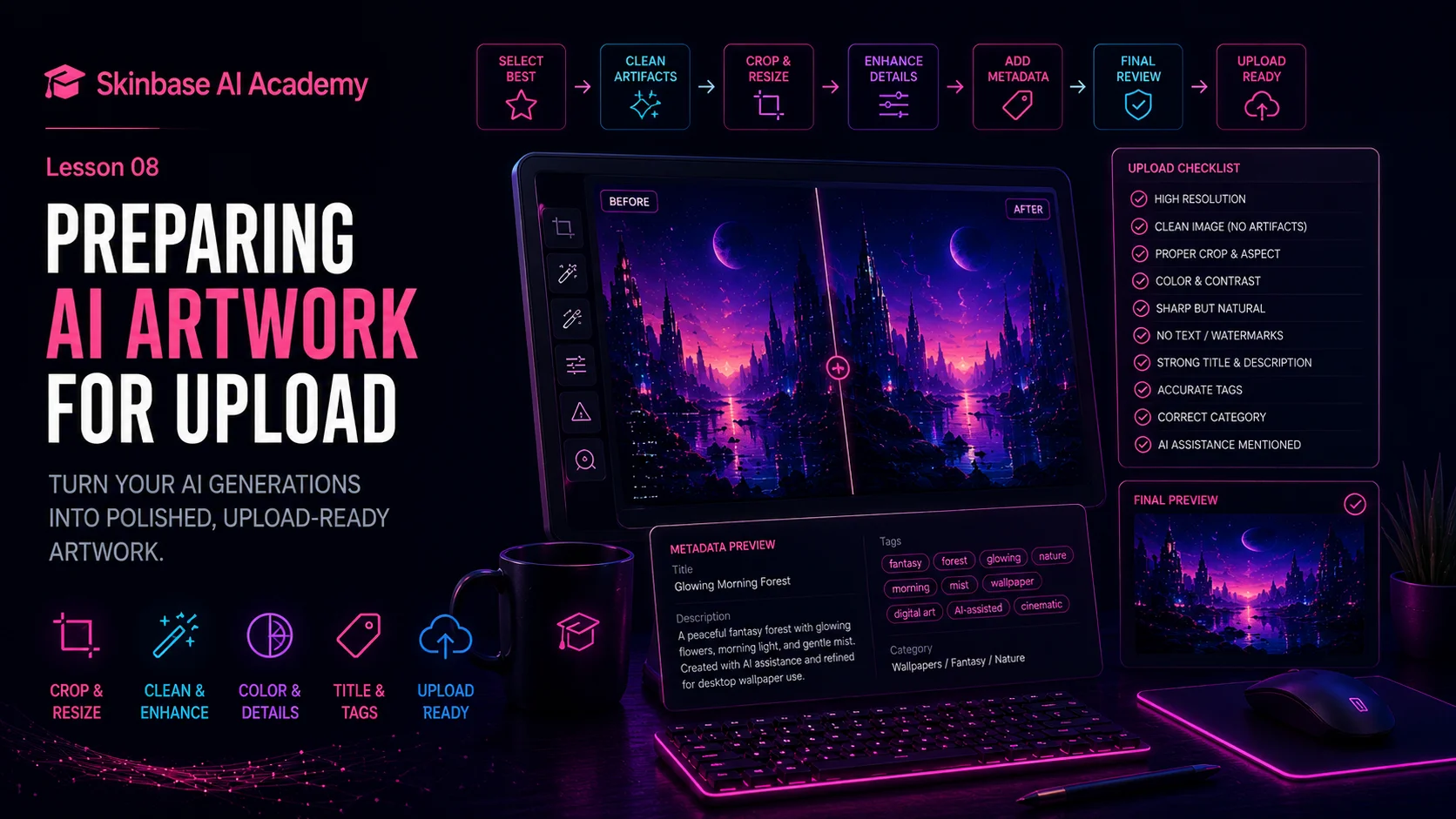
## Introduction
Creating an AI image is only part of the process.
Before you upload artwork to Skinbase, you should prepare it carefully. A generated image may look good at first, but it still needs a final review. It may need cleanup, cropping, resizing, sharpening, color adjustment, a better title, useful tags, a correct category, and an honest description.
This preparation step is important because Skinbase is not only a place to store images. It is a creative community where people discover wallpapers, digital artwork, skins, icons, concepts, and visual inspiration.
When you upload something, you are presenting it to other users.
A good upload should feel finished.
It should be clean.
It should have a clear subject.
It should have good resolution.
It should not contain fake text, watermarks, logos, or strange AI artifacts.
It should have a good title, useful description, accurate tags, and the correct category.
Preparing artwork for upload helps your work look more professional. It also helps people find it, understand it, and enjoy it.
In this lesson, you will learn how to prepare AI-assisted artwork before publishing it on Skinbase.
The goal is simple:
> Do not upload only because the image was generated. Upload when the artwork is ready.
---
## 1. Start with the best version
Before preparing an image for upload, choose the best version.
AI tools can generate many variations from the same prompt. Some versions may have better lighting. Others may have better composition, cleaner details, stronger mood, or fewer mistakes.
Do not automatically upload the first image.
Compare several versions and choose the strongest one.
Ask yourself:
- Which version has the clearest subject?
- Which version has the best mood?
- Which version has the cleanest details?
- Which version works best as a wallpaper or artwork?
- Which version has the fewest AI mistakes?
- Which version would look best in the Skinbase gallery?
The best version is not always the most detailed one.
Sometimes an image with fewer details is better because it is cleaner, calmer, and easier to use as a wallpaper. A very detailed image can look impressive, but it may also feel messy or distracting.
A good rule:
> Choose the image with the strongest foundation, not only the strongest effects.
Starting with a good version makes the rest of the upload process much easier.
---
## 2. Open the image at full size
After choosing the best version, open it at full size.
Do not judge the image only from a small preview or thumbnail. Many AI mistakes are hidden when the image is small. They become visible only when you zoom in.
Check the image carefully.
Look at:
- the main subject;
- the background;
- the corners;
- the edges;
- small objects;
- signs or screens;
- faces and hands if people are present;
- buildings and windows if architecture is present;
- reflections and shadows;
- any area that looks like text or a logo.
This step helps you find problems before other users see them.
For example, a fantasy forest may look beautiful in a thumbnail, but at full size you may notice fake text on a sign, strange branches, or a watermark-like mark in the corner.
A sci-fi city may look impressive, but close inspection may reveal broken windows, unreadable signs, or distorted buildings.
A character image may have a strong pose, but the hands or eyes may be wrong.
A good rule:
> Always check the full-size image before uploading.
---
## 3. Remove obvious AI artifacts
AI artifacts are strange or unwanted details created by the AI.
They can make an image look unfinished.
Common AI artifacts include:
- fake text;
- random letters;
- watermark-like marks;
- fake signatures;
- unwanted logos;
- distorted hands;
- strange faces;
- broken objects;
- messy backgrounds;
- duplicated elements;
- low-resolution patches;
- blurry areas;
- impossible architecture;
- strange reflections;
- noisy details.
Some artifacts are small and easy to fix. Others may be serious enough that you should generate a new version.
For small problems, you can use editing tools such as:
- Photoshop;
- GIMP;
- Krita;
- Affinity Photo;
- Photopea;
- built-in AI editing tools;
- clone tools;
- healing tools;
- object removal tools.
Examples of small fixes:
- remove fake text from a sign;
- remove a strange object in the sky;
- clean a watermark-like mark from a corner;
- repair a small broken area;
- crop out a distracting edge;
- soften a noisy background.
If the image has too many problems, it may be better to regenerate instead of spending a long time fixing it.
A good rule:
> Fix small problems. Regenerate images with serious problems.
---
## 4. Check image resolution
Resolution is the size of the image in pixels.
For example:
> 1920 × 1080
This means the image is 1920 pixels wide and 1080 pixels tall.
Resolution matters because Skinbase artwork should look good when viewed at a useful size. A low-resolution image may look blurry, pixelated, or weak when opened on a larger screen.
For desktop wallpapers, common useful resolutions include:
- 1920 × 1080;
- 2560 × 1440;
- 3840 × 2160;
- 2560 × 1600;
- 3440 × 1440 for ultra-wide wallpapers.
For mobile wallpapers, useful vertical resolutions may include:
- 1080 × 1920;
- 1440 × 2560;
- 2160 × 3840.
You do not always need the largest possible image, but the artwork should be large enough for its intended purpose.
Ask yourself:
- Is this resolution suitable for the type of artwork?
- Will it look sharp on a modern screen?
- Is it too small?
- Was it upscaled too much?
- Does the image still look clean at full size?
Be careful with upscaling. Upscaling can help, but it can also create artificial sharpness, strange textures, or noisy details if overused.
A good rule:
> Upload artwork at a useful resolution, but make sure it still looks clean.
---
## 5. Check the aspect ratio
Aspect ratio describes the shape of the image.
A 16:9 image is wide.
A 9:16 image is vertical.
A 1:1 image is square.
A 21:9 image is ultra-wide.
The aspect ratio should match the purpose of the artwork.
For example:
- desktop wallpaper: usually 16:9 or 16:10;
- mobile wallpaper: usually 9:16;
- square artwork: 1:1;
- cover image: wide banner format;
- ultra-wide wallpaper: 21:9;
- icon: square or centered format.
If the aspect ratio is wrong, the image may not work well.
A wide landscape may not work as a mobile wallpaper if the main subject gets cut off.
A vertical character image may not work as a desktop wallpaper.
A busy square image may not work as a wide cover banner.
Before uploading, ask:
- What is the artwork meant to be?
- Does the image shape match that purpose?
- Is the subject placed correctly?
- Will the image crop well in previews?
- Are important details too close to the edges?
A good rule:
> Prepare the image shape for the way people will use it.
---
## 6. Crop with intention
Cropping means choosing what part of the image stays visible.
A good crop can make an artwork stronger. A bad crop can make it feel awkward.
When cropping, think about the subject, balance, and final use.
For desktop wallpapers:
- avoid placing the subject too close to the edge;
- leave some calm space if possible;
- avoid making the image too crowded;
- check if desktop icons may cover important details.
For mobile wallpapers:
- keep the main subject readable;
- avoid placing important details under the top clock area;
- avoid placing important details too low near app icons;
- make sure the image still works vertically.
For cover images:
- leave space for title text;
- avoid putting important details where overlays may appear;
- keep the focal point strong;
- make sure the banner still works when cropped on different devices.
For icons:
- keep the object centered;
- use a simple background;
- check if the shape is readable at small size.
A good rule:
> Crop to improve the artwork, not only to fit a size.
Cropping is a creative decision. It can make an image more focused, balanced, and useful.
---
## 7. Adjust color and contrast
Sometimes an AI image has a good idea but needs better finishing.
Color and contrast adjustments can make the artwork feel more polished.
You may adjust:
- brightness;
- contrast;
- saturation;
- shadows;
- highlights;
- color balance;
- sharpness;
- warmth or coolness;
- overall mood.
For example:
A fantasy forest may need softer highlights and deeper shadows.
A sci-fi city may need stronger neon contrast.
A peaceful nature wallpaper may need calmer colors.
A dark image may need brighter midtones so details are visible.
A mobile wallpaper may need stronger contrast so it remains readable on a phone screen.
Be careful not to overdo it.
Too much saturation can make the image look unnatural.
Too much sharpening can make details harsh.
Too much contrast can destroy shadow detail.
Too much brightness can make the image look flat.
A good rule:
> Adjust the image until it feels polished, not overprocessed.
---
## 8. Sharpen carefully
Sharpness helps an image look clear.
But too much sharpening can damage the artwork. It can create rough edges, noise, halos, and harsh textures.
AI images sometimes already have artificial-looking details. Heavy sharpening can make those problems worse.
When sharpening, focus on important areas:
- main subject;
- foreground details;
- character face;
- important objects;
- architecture edges;
- icon shapes.
Avoid over-sharpening:
- smooth skies;
- mist;
- soft clouds;
- skin;
- gradients;
- blurred background areas.
For wallpapers, the image should feel clear but comfortable to look at. A wallpaper that is too sharp can become tiring.
A good rule:
> Sharpen enough for clarity, but keep the image natural.
---
## 9. Remove fake text, logos, and watermarks
Before uploading, carefully check for text-like artifacts.
AI tools often create fake writing. It may appear on:
- signs;
- books;
- posters;
- screens;
- clothing;
- walls;
- interface panels;
- corners;
- decorative objects.
Fake text can make an image look unfinished.
Also check for:
- fake logos;
- fake signatures;
- watermark-like marks;
- random symbols;
- brand-like shapes.
These should be removed before uploading.
Use negative prompts during generation:
> no text, no watermark, no logo, no signature, no brand names
But still check manually. Negative prompts help, but they do not guarantee a clean image.
A good rule:
> If the text is not intentional and readable, remove it.
For cover images and lesson images, it is often better to generate the background without text and add typography manually later. This gives cleaner and more professional results.
---
## 10. Prepare the file format
The file format affects quality, size, and compatibility.
Common image formats include:
- JPEG;
- PNG;
- WebP;
- AVIF.
JPEG is useful for photos, paintings, and large artwork.
PNG is useful for sharp graphics, transparency, UI elements, and icons.
WebP is useful for smaller web-friendly images with good quality.
AVIF can offer very small file sizes, but support and workflow may vary.
For uploaded artwork, choose a format that keeps the image clean and detailed.
Avoid saving the image again and again with strong compression. Repeated compression can create artifacts.
If exporting JPEG or WebP, use a quality setting that preserves details without creating huge files.
A good rule:
> Use the format that keeps the artwork clean and suitable for its purpose.
For master artwork, keep a high-quality original file if possible. Then export web-friendly versions for display.
---
## 11. Name the file clearly
A good filename can help with organization.
Avoid filenames like:
> image001.png
> final_final_2_real.png
> ai-test-new-new.webp
Better filenames describe the artwork.
Examples:
> glowing-morning-forest-wallpaper.webp
> neon-rain-city-sci-fi-wallpaper.webp
> floating-island-morning-ai-assisted.webp
> starlight-tree-mobile-wallpaper.webp
A clean filename helps you manage your own files and can also support SEO-friendly media organization.
Use lowercase letters and hyphens:
> glowing-morning-forest-wallpaper.webp
Avoid spaces, strange symbols, and very long filenames.
A good rule:
> Use a simple filename that describes the artwork.
---
## 12. Add a strong title
The title is one of the first things people see.
A good title makes the artwork feel more finished and memorable.
Weak title:
> AI image 01
Better title:
> Glowing Morning Forest
Weak title:
> Fantasy
Better title:
> Floating Island Above the Clouds
Weak title:
> Test wallpaper
Better title:
> Neon Rain District
A good title should be:
- clear;
- memorable;
- connected to the subject;
- connected to the mood;
- not too long;
- not misleading.
Do not use the title only for keywords.
Bad title:
> Fantasy Forest Wallpaper AI Art Digital Art High Resolution Blue Flowers
Better title:
> Glowing Morning Forest
The keywords can go in the tags and description.
A good rule:
> Use the title for meaning, not keyword stuffing.
---
## 13. Write a useful description
A description gives viewers more context.
It can explain:
- what the image shows;
- the mood;
- the style;
- the creative idea;
- the intended use;
- whether AI was part of the workflow;
- what was refined before upload.
Example:
> A peaceful fantasy forest wallpaper with glowing blue flowers, soft morning light, and gentle mist. Created with AI assistance, selected from several generations, and refined for desktop wallpaper use.
This description is short, honest, and useful.
Avoid empty descriptions like:
> cool image
Or:
> nice art
Also avoid keyword spam.
Bad description:
> fantasy wallpaper fantasy forest wallpaper best wallpaper AI wallpaper blue flowers fantasy wallpaper download
Better:
> A calm fantasy forest wallpaper with glowing blue flowers and soft morning mist, prepared as an AI-assisted desktop background.
A good rule:
> Write descriptions for people first.
---
## 14. Add accurate tags
Tags help people discover your artwork.
Good tags describe the artwork honestly.
They can include:
- subject;
- style;
- mood;
- format;
- genre;
- visual details;
- workflow.
Example tags:
> fantasy forest, glowing flowers, morning light, mist, peaceful, nature, wallpaper, digital art, AI-assisted, cinematic
Avoid tags like:
> cool, nice, image, test, random
Also avoid misleading tags.
If the artwork is not cyberpunk, do not tag it as cyberpunk.
If it is not pixel art, do not tag it as pixel art.
If it is AI-assisted, use AI-related tags where appropriate.
A good tag set usually has around 8 to 15 useful tags.
A good rule:
> Tags should describe the artwork accurately.
---
## 15. Choose the correct category
The category should match the artwork.
The category tells Skinbase where the artwork belongs.
A fantasy forest wallpaper may belong in:
> Wallpapers / Fantasy / Nature
A sci-fi city wallpaper may belong in:
> Wallpapers / Sci-Fi / Digital Art
A robot mascot may belong in:
> Characters / Sci-Fi / Digital Art
A clean UI concept may belong in:
> Skins / Interface / Design
A retro pixel-art image may belong in:
> Pixel Art / Retro / Wallpapers
The exact category depends on the Skinbase structure, but the idea is simple: choose the category users would expect.
Do not choose a category only because it is popular. Wrong categories make browsing worse.
A good rule:
> Use the category for the main type of artwork. Use tags for the details.
---
## 16. Mention AI assistance when needed
If AI was part of the workflow, mention it where appropriate.
This can be simple.
Examples:
> Created with AI assistance and refined for wallpaper use.
> AI-assisted digital artwork, selected from several generations and cleaned up before upload.
> Generated with AI as a starting point, then cropped, color-adjusted, and prepared for Skinbase.
Being honest about AI does not make the artwork less valuable. It shows transparency and helps build trust.
A good rule:
> Be honest about the workflow.
---
## 17. Preview the upload if possible
Before publishing, preview the upload.
Check how the artwork appears on the page.
Look at:
- cover crop;
- thumbnail crop;
- title;
- description;
- tags;
- category;
- image clarity;
- layout on desktop;
- layout on mobile.
Sometimes an image looks good in your editor but appears awkward in a gallery card or page layout.
The thumbnail may crop the subject.
The title may be too long.
The description may have a typo.
The category may be wrong.
The image may look too dark in the site layout.
Previewing helps catch these problems.
A good rule:
> Check how the artwork looks after upload, not only before upload.
---
## 18. Final upload checklist
Before publishing AI-assisted artwork on Skinbase, use this checklist.
### Image quality
- The image is clean.
- The resolution is good.
- The crop is correct.
- The aspect ratio matches the purpose.
- The subject is clear.
- The mood is strong.
- The image is sharp enough.
- The colors and contrast are balanced.
### AI artifact check
- No fake text.
- No watermark.
- No fake signature.
- No unwanted logo.
- No distorted objects.
- No broken anatomy.
- No messy background.
- No low-resolution artifacts.
### Purpose check
- It works as a wallpaper, artwork, icon, cover, or skin concept.
- Important details are not cut off.
- The image still looks good as a thumbnail.
- The image works on the intended screen format.
### Metadata check
- The title is clear.
- The description is useful.
- The tags are accurate.
- The category is correct.
- AI assistance is mentioned if needed.
### Final decision
- I selected this image intentionally.
- I reviewed it at full size.
- I would be proud to show this artwork.
- It is ready for the Skinbase community.
If the artwork passes this checklist, it is ready to upload.
---
## 19. Common beginner mistakes
Beginners often make these mistakes when preparing AI artwork for upload:
- uploading the first generated image;
- not checking the image at full size;
- ignoring fake text;
- leaving watermark-like marks;
- using low-resolution images;
- using the wrong aspect ratio;
- cropping badly;
- over-sharpening;
- over-saturating colors;
- using generic titles;
- writing weak descriptions;
- adding poor tags;
- choosing the wrong category;
- not mentioning AI assistance when needed;
- uploading too many similar images.
Most of these mistakes are easy to avoid with a careful preparation workflow.
A good rule:
> Slow down before uploading. Small checks can greatly improve the final result.
---
## 20. Example: preparing a fantasy forest wallpaper
Prompt:
> A peaceful fantasy forest wallpaper with glowing blue flowers, giant old trees, gentle mist, soft morning light, calm magical mood, detailed digital painting, wide 16:9 desktop wallpaper composition, high-resolution, no text, no watermark.
Preparation workflow:
1. Generate several versions.
2. Choose the one with the best composition.
3. Open it at full size.
4. Check for fake text, strange branches, blurry flowers, and watermark-like marks.
5. Remove small artifacts if needed.
6. Crop to 16:9 desktop wallpaper format.
7. Adjust brightness and contrast.
8. Export a clean final version.
9. Add title, description, tags, and category.
10. Preview the upload.
Final metadata:
**Title:**
Glowing Morning Forest
**Description:**
A peaceful fantasy forest wallpaper with glowing blue flowers, soft morning light, and gentle mist. Created with AI assistance, selected from several generations, and refined for desktop wallpaper use.
**Tags:**
fantasy forest, glowing flowers, morning light, mist, peaceful, nature, wallpaper, digital art, AI-assisted, cinematic
**Category:**
Wallpapers / Fantasy / Nature
This is a prepared upload. It feels intentional, clean, and useful.
---
## Key takeaways
Generating an image is not the same as preparing artwork for upload.
A strong upload needs image quality, correct format, clean details, useful metadata, and honest presentation.
Always check the image at full size.
Remove fake text, watermarks, logos, signatures, and obvious AI artifacts.
Check resolution, aspect ratio, crop, color, contrast, and sharpness.
Use a clear title, useful description, accurate tags, and correct category.
Mention AI assistance when appropriate.
The best Skinbase uploads feel reviewed, prepared, and polished.
---
## Practical exercise
Choose one AI-generated or AI-assisted image.
Prepare it for upload using this workflow:
1. Choose the best version.
2. Open the image at full size.
3. Check for fake text, watermarks, logos, and artifacts.
4. Crop it for its purpose.
5. Check resolution and aspect ratio.
6. Adjust color and contrast if needed.
7. Export a clean final file.
8. Create a clear title.
9. Write a useful description.
10. Add accurate tags.
11. Choose the correct category.
12. Mention AI assistance if needed.
13. Preview the upload.
14. Publish only if it feels ready.
Example metadata:
**Title:**
Neon Rain District
**Description:**
A cinematic sci-fi city wallpaper with glowing neon towers, rainy streets, and reflections on glass buildings. Created with AI assistance, reviewed for artifacts, and prepared as a high-resolution desktop wallpaper.
**Tags:**
sci-fi city, cyberpunk, neon, rain, futuristic, wallpaper, night city, digital art, AI-assisted, cinematic
**Category:**
Wallpapers / Sci-Fi / Digital Art
Ask yourself:
- Is the image clean?
- Is the resolution good?
- Does the crop work?
- Are the title and description useful?
- Are the tags accurate?
- Is the category correct?
- Would I be proud to show this artwork?
If yes, the artwork is ready for Skinbase.
---
## Final note
Preparing artwork for upload is part of the creative process.
It is not boring technical work. It is the step that turns a generated image into a finished presentation.
A prompt helps create the image.
Editing improves it.
Preparation makes it ready for the community.
A strong Skinbase creator does not only generate images.
A strong creator selects, reviews, cleans, prepares, and presents artwork with care.
Course navigation
Continue this course
Previous lesson
Lesson 07
AI Ethics and Skinbase Upload Rules
AI-assisted artwork can be powerful, but creators should use it responsibly. In this lesson, Skinbase creators learn basic AI ethics, upload quality rules, and how to share AI-assisted artwork honestly.
Next lesson
Lesson 09
Titles, Tags, Categories, and Discovery
Creating the artwork is only one part of the process. In this lesson, Skinbase creators learn how titles, descriptions, tags, and categories help people discover, understand, and enjoy AI-assisted artwork.