
Article
Lesson content
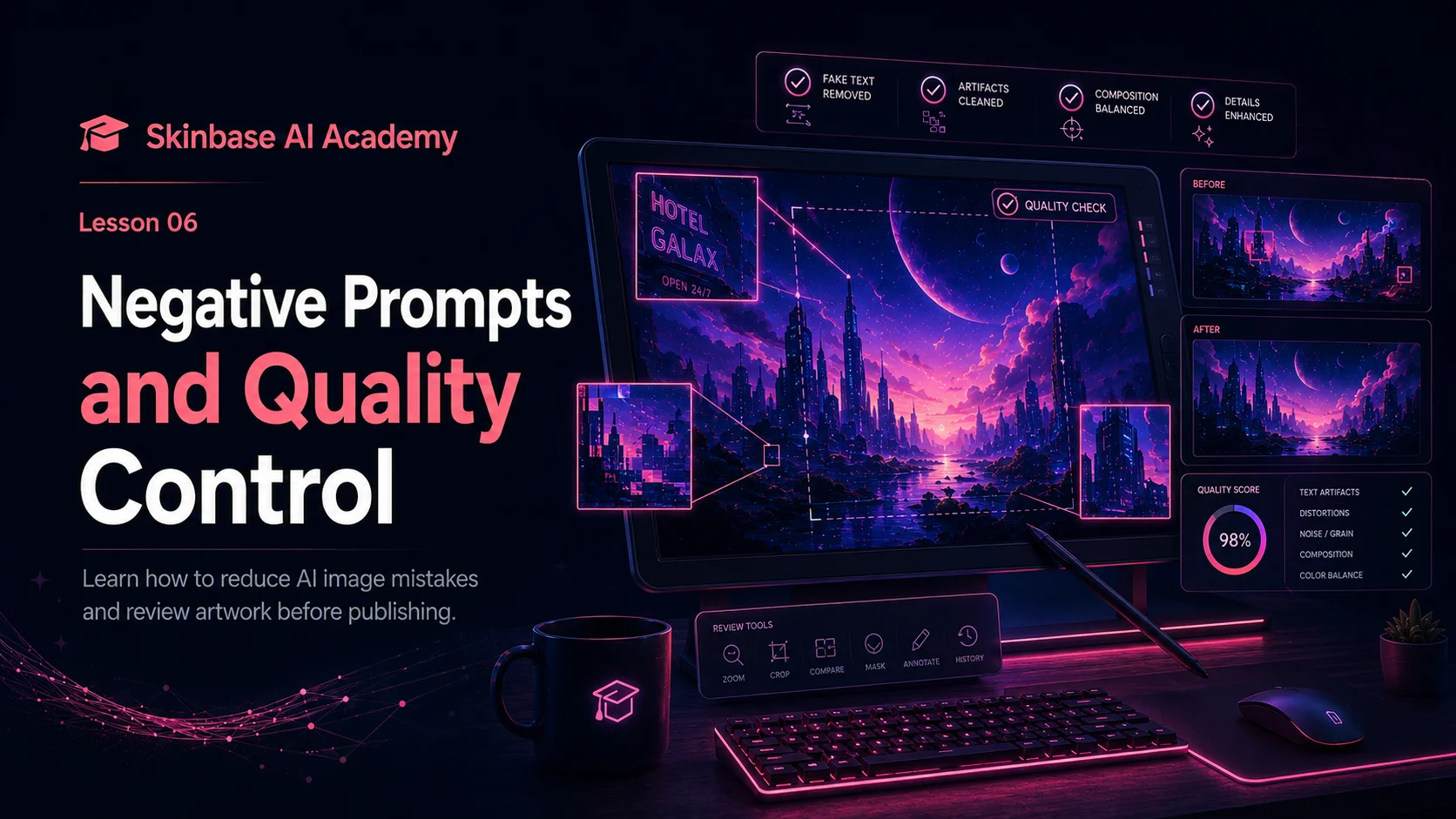
Introduction
AI image tools can create impressive artwork very quickly, but the results are not always perfect.
Sometimes an image looks beautiful at first glance, but when you look closer, you may notice problems. There may be fake text, strange hands, distorted faces, blurry details, random objects, broken architecture, or watermark-like marks.
This is normal with AI-generated images.
The important part is what you do next.
A good Skinbase creator does not upload every generated image immediately. A good creator checks the result, removes problems where possible, chooses the best version, and only publishes artwork that feels clean and finished.
This is where negative prompts and quality control are useful.
A normal prompt tells the AI what you want.
Example:
A peaceful fantasy forest wallpaper with glowing blue flowers and soft morning light.
A negative prompt tells the AI what you do not want.
Example:
no text, no watermark, no logo, no blurry details, no distorted objects, no messy composition
Negative prompts do not guarantee a perfect image, but they can help reduce common problems.
Quality control is the next step. It means reviewing the image carefully before publishing. You zoom in, check details, look for mistakes, and decide whether the image is ready, needs editing, or should be generated again.
In this lesson, you will learn how negative prompts work, what common AI problems to watch for, and how to check your artwork before uploading it to Skinbase.
The goal is simple:
Create cleaner, stronger, and more polished AI-assisted artwork by avoiding common mistakes before publishing.
1. What is a negative prompt?
A negative prompt is a list of things you want the AI to avoid.
A normal prompt gives direction:
Create a futuristic city wallpaper at night with glowing neon towers and rainy streets.
A negative prompt adds restrictions:
no text, no watermark, no logo, no blurry details, no distorted buildings, no messy composition
Together, they guide the result more clearly.
The normal prompt says:
This is what I want.
The negative prompt says:
This is what I do not want.
Some AI tools have a separate field called Negative prompt. In that case, you can place the unwanted elements there.
Other tools do not have a separate negative prompt field. In those tools, you can include negative instructions at the end of your main prompt.
Example:
A futuristic city wallpaper at night, glowing neon towers, rainy streets, cinematic sci-fi mood, wide 16:9 desktop wallpaper composition, high-resolution, no text, no watermark, no logo, no blurry details.
Both methods can work. The exact behavior depends on the AI tool, but the idea is the same.
Negative prompts help the AI avoid common problems.
2. Why negative prompts are useful
AI tools sometimes add things you did not ask for.
For example, an AI image may include:
-
fake text;
-
unreadable signs;
-
random logos;
-
watermark-like marks;
-
extra fingers;
-
distorted hands;
-
strange faces;
-
broken objects;
-
blurry areas;
-
messy backgrounds;
-
duplicated elements;
-
low-resolution artifacts.
These problems can make the artwork feel unfinished.
Negative prompts are useful because they remind the AI to avoid these mistakes.
For Skinbase creators, this is especially important because uploaded artwork should feel polished and ready for the community. If an image has fake text, broken anatomy, or watermark-like marks, it may look careless even if the main idea is good.
A negative prompt is not a magic fix. It will not solve every problem. But it can improve the chance of getting a cleaner result.
Think of it as a safety instruction.
The main prompt builds the image.
The negative prompt protects the image from common mistakes.
3. A simple negative prompt for beginners
If you are just starting, you do not need a complicated negative prompt.
You can begin with a simple version that works for many artwork types:
no text, no watermark, no logo, no signature, no blurry details, no distorted objects, no messy composition, no low-resolution artifacts
This is a good general negative prompt for wallpapers, covers, fantasy scenes, sci-fi artwork, and abstract images.
It helps avoid the most common visual problems.
For many Skinbase uploads, this simple ending is enough:
no text, no watermark, no logo, no signature
These four are especially important because fake text and watermark-like marks can make an image look unfinished or misleading.
4. Negative prompts for wallpapers
Wallpapers need to be clean and pleasant to look at.
A wallpaper may be used every day on a desktop, phone, or tablet. If the image has distracting artifacts, messy details, or fake text, it becomes less useful.
For wallpaper prompts, useful negative notes include:
-
no text;
-
no watermark;
-
no logo;
-
no signature;
-
no blurry details;
-
no messy composition;
-
no distorted objects;
-
no random objects;
-
no low-resolution artifacts;
-
no noisy background;
-
no over-sharpened details.
Example wallpaper prompt:
A peaceful fantasy lake wallpaper at sunrise, calm reflections, pine trees, soft morning mist, detailed digital painting style, wide 16:9 desktop wallpaper composition, high-resolution, no text, no watermark, no logo, no blurry details, no messy composition.
Why this works:
The prompt describes the subject, mood, style, composition, and lighting. The negative notes help keep the image clean and wallpaper-friendly.
For mobile wallpapers, you can add:
no important details near the top or bottom edge
This helps because phone interface elements may cover parts of the image.
Example:
A magical glowing tree under a starry sky, vertical mobile wallpaper composition, centered subject, clean silhouette, soft blue lighting, high-resolution, no text, no watermark, no important details near the top or bottom edge.
5. Negative prompts for people and characters
AI tools often make mistakes with people and characters.
Common problems include hands, fingers, eyes, teeth, faces, body proportions, clothing, and poses.
If your image includes a person, robot, mascot, fantasy character, or creature, use negative prompts that focus on anatomy and shape.
Useful negative notes include:
-
no distorted hands;
-
no extra fingers;
-
no missing fingers;
-
no broken anatomy;
-
no strange face;
-
no duplicated face;
-
no unnatural body proportions;
-
no twisted limbs;
-
no deformed eyes;
-
no distorted mouth;
-
no messy clothing details.
Example character prompt:
A friendly retro robot mascot standing in a futuristic creative studio, rounded metal body, glowing blue eyes, clean 3D render style, playful mood, centered composition, soft studio lighting, high-resolution, no text, no watermark, no distorted limbs, no broken hands, no messy details.
For human characters:
A fantasy explorer standing near a glowing ancient gate, cinematic digital painting style, mysterious mood, soft blue rim lighting, wide composition, high-resolution, no text, no watermark, no distorted hands, no extra fingers, no strange face, no broken anatomy.
Negative prompts are helpful, but characters still need careful checking after generation. Hands and faces may still need manual cleanup or regeneration.
6. Negative prompts for text, signs, and user interfaces
AI tools often create fake text.
This can appear on signs, books, posters, screens, clothes, walls, logos, or interface elements.
From far away, fake text may look like real writing. But when you zoom in, it often becomes unreadable shapes.
For Skinbase artwork, fake text can be a problem because it makes the image look unfinished.
If your image does not need text, use:
no text, no letters, no words, no typography, no signs, no labels
If your image includes screens or user interfaces, use:
no fake UI text, no unreadable text, no random letters, no broken interface labels
Example:
A futuristic digital art workspace with glowing screens and creative tools, cinematic blue and purple lighting, clean modern composition, high-resolution, no text, no fake UI text, no watermark, no logo, no random letters.
However, be careful. If you ask for a “poster”, “book cover”, “magazine cover”, “news article image”, or “interface screen”, the AI may try to add text because those objects often contain text.
If you want a clean image without readable text, say it clearly:
clean poster-like composition without any text
Or:
abstract interface panels with no readable text
For lesson covers, if you need exact text, it is often better to add the final typography later with a design tool. AI-generated text can be unreliable.
7. Negative prompts for logos, brands, and watermarks
AI tools may sometimes create logo-like shapes, fake signatures, or watermark-like marks.
These are unwanted because they can make the artwork look copied, branded, or unfinished.
Useful negative notes include:
-
no watermark;
-
no signature;
-
no logo;
-
no brand names;
-
no fake artist signature;
-
no copyright mark;
-
no stock image watermark;
-
no text overlay.
Example:
A cinematic fantasy mountain village wallpaper, wooden houses, glowing windows, pine trees, distant mountains, soft atmospheric haze, detailed digital painting style, wide 16:9 composition, high-resolution, no text, no watermark, no signature, no logo, no brand names.
This is a good habit for Skinbase uploads.
Even if the image looks good, always check the corners and edges. Watermark-like marks often appear in corners, on clothing, in the sky, or as strange symbols near detailed areas.
8. Negative prompts for architecture and objects
AI can also struggle with buildings, bridges, vehicles, furniture, machines, and repeated patterns.
Common problems include:
-
broken windows;
-
strange doors;
-
impossible stairs;
-
distorted wheels;
-
repeated objects;
-
crooked buildings;
-
messy wires;
-
unrealistic reflections;
-
broken perspective;
-
strange small objects.
For architecture, use:
no distorted buildings, no broken windows, no impossible architecture, no bad perspective, no messy structures
Example:
A futuristic city skyline at night, glowing neon towers, rainy streets, cinematic sci-fi concept art style, wide 16:9 wallpaper composition, high-resolution, no text, no watermark, no distorted buildings, no broken windows, no bad perspective.
For vehicles or machines, use:
no distorted wheels, no broken mechanical parts, no impossible machinery, no duplicated objects
Example:
A retro-futuristic hover car parked in a neon alley, cinematic lighting, detailed sci-fi concept art style, high-resolution, no text, no watermark, no distorted wheels, no broken mechanical parts, no duplicated objects.
These instructions can help, but complex objects still need manual review.
9. Negative prompts for abstract and minimal artwork
Abstract and minimal wallpapers need clean shapes and balanced colors.
AI may sometimes create noisy textures, messy gradients, random symbols, or unwanted details.
Useful negative notes include:
-
no noisy artifacts;
-
no messy shapes;
-
no random symbols;
-
no dirty gradients;
-
no harsh banding;
-
no clutter;
-
no text;
-
no watermark.
Example:
A clean minimal abstract wallpaper with soft flowing shapes, smooth blue and violet gradients, peaceful mood, balanced wide 16:9 composition, high-resolution, no text, no watermark, no noisy artifacts, no messy shapes, no dirty gradients.
For minimal artwork, negative prompts are very useful because small unwanted details can ruin the clean look.
10. Do not overload the negative prompt
Negative prompts are useful, but too many negative words can sometimes confuse the result.
A very long negative prompt may include many things that are not relevant to the image.
For example, if you are generating a landscape with no people, you probably do not need:
no extra fingers, no broken hands, no distorted face
Those notes are more useful for character images.
If you are generating a clean abstract wallpaper, you probably do not need:
no broken buildings, no distorted vehicles, no bad anatomy
Try to match the negative prompt to the artwork.
A good beginner approach is:
Use a general negative prompt for all images:
no text, no watermark, no logo, no signature, no blurry details, no low-resolution artifacts
Then add specific negative notes only when needed.
For people:
no distorted hands, no extra fingers, no broken anatomy
For architecture:
no distorted buildings, no broken windows, no bad perspective
For abstract art:
no noisy artifacts, no messy shapes, no dirty gradients
For UI or screens:
no fake UI text, no unreadable text, no random letters
A good rule:
Use negative prompts to prevent likely problems, not every possible problem.
11. What is quality control?
Quality control means checking the image before publishing.
It is the step where you decide whether the artwork is ready for Skinbase.
A generated image can look good in a small preview but still have problems at full size. Quality control helps you catch those problems.
Quality control includes checking:
-
subject clarity;
-
composition;
-
resolution;
-
sharpness;
-
fake text;
-
watermarks;
-
logos;
-
strange objects;
-
distorted anatomy;
-
broken details;
-
color balance;
-
crop;
-
category fit;
-
title, description, and tags.
This step is important because Skinbase should feel like a place for polished creative work, not random unfinished outputs.
Quality control is part of the creator’s responsibility.
The AI creates possibilities.
The creator chooses what is good enough to share.
12. First check: look at the whole image
Start by looking at the whole image.
Do not zoom in immediately.
First ask:
-
Is the subject clear?
-
Does the image match the prompt?
-
Is the mood right?
-
Is the composition balanced?
-
Does it work for its intended purpose?
-
Would this look good as a wallpaper, cover, icon, or artwork?
-
Is anything obviously distracting?
This first check helps you decide if the image has a strong foundation.
If the whole image feels wrong, it may not be worth fixing small details.
For example, if you wanted a peaceful forest wallpaper but the image feels dark, chaotic, and crowded, it may be better to change the prompt and generate again.
Do not waste too much time repairing an image with a weak foundation.
Choose a strong base first.
13. Second check: zoom in
After the whole image looks good, zoom in.
Check the image at full size.
Look carefully at:
-
corners;
-
edges;
-
background details;
-
main subject;
-
hands and faces;
-
signs and screens;
-
small objects;
-
repeated patterns;
-
shadows and reflections.
Some AI problems are only visible when the image is opened at full size.
A fake signature may be hidden in the corner.
Fake text may appear on a sign.
Hands may look strange.
A building may have broken windows.
A tree branch may turn into an object that makes no sense.
A reflection may show something impossible.
Zooming in helps you catch these issues before viewers do.
A good rule:
If you notice a strange detail, other users may notice it too.
Fix it, crop it out, regenerate, or choose a cleaner version.
14. Third check: look at the image as a thumbnail
Skinbase users may first see your artwork as a thumbnail.
An image can look good at full size but unclear as a thumbnail.
Check whether the artwork is still readable when small.
Ask:
-
Can I understand the subject quickly?
-
Is the main shape clear?
-
Is the image too dark?
-
Is the image too busy?
-
Does the thumbnail make me want to open it?
-
Are the colors attractive at small size?
This is especially important for gallery browsing.
A strong thumbnail helps people notice your artwork.
If the image is too detailed, too dark, or too low-contrast, it may disappear in a gallery grid.
You do not need to design only for thumbnails, but the image should still be understandable at small sizes.
15. Fourth check: confirm the final purpose
Every artwork has a purpose.
A desktop wallpaper should work on a desktop.
A mobile wallpaper should work on a phone.
A cover image should leave space for text.
An icon should be readable at small sizes.
A skin concept should be clean and functional.
Ask:
-
Is the aspect ratio correct?
-
Is the crop good?
-
Are important details too close to the edge?
-
Is there enough empty space where needed?
-
Does the resolution fit the final use?
-
Would this image work on a real screen?
For desktop wallpapers, check if icons would cover the subject.
For mobile wallpapers, check if the clock or app icons would cover important details.
For cover images, check if title text could be placed clearly.
For icons, shrink the image and see if the shape is still readable.
Quality control is not only about fixing mistakes. It is also about making sure the artwork works for its purpose.
16. Decide: publish, edit, regenerate, or reject
After checking the image, decide what to do.
There are four common options:
Publish
The image is clean, strong, and ready.
Publish when:
-
the subject is clear;
-
the image has good quality;
-
there are no serious artifacts;
-
the resolution is good;
-
the crop works;
-
the metadata is prepared.
Edit
The image is strong, but has small fixable problems.
Edit when:
-
there is one small fake text area;
-
a small object looks strange;
-
contrast needs improvement;
-
crop can be better;
-
colors need adjustment;
-
a minor detail needs cleanup.
Regenerate
The idea is good, but the image has too many problems.
Regenerate when:
-
the composition is weak;
-
the subject is unclear;
-
there are many artifacts;
-
anatomy is badly broken;
-
perspective is wrong;
-
the mood does not match the prompt.
Reject
The image is not worth saving.
Reject when:
-
it does not match the idea;
-
it feels unfinished;
-
it is too messy;
-
it would take too much time to repair;
-
it does not meet Skinbase quality standards.
A good creator knows when to continue and when to start again.
Not every generated image should become an upload.
17. Example: improving a prompt with negative notes
Simple prompt:
A fantasy forest wallpaper.
This is too basic. It does not guide the image enough.
Better prompt:
A peaceful fantasy forest wallpaper with glowing blue flowers, ancient trees, soft morning mist, calm magical mood, detailed digital painting style, wide 16:9 desktop wallpaper composition, high-resolution, no text, no watermark.
Now let’s add stronger negative notes:
A peaceful fantasy forest wallpaper with glowing blue flowers, ancient trees, soft morning mist, calm magical mood, detailed digital painting style, wide 16:9 desktop wallpaper composition, high-resolution, no text, no watermark, no logo, no signature, no blurry details, no messy composition, no random objects.
This version is more controlled.
It tells the AI what to create and what to avoid.
After generating, you would still check the image manually.
Negative prompts help reduce problems, but quality control decides if the image is truly ready.
18. Example: character image quality control
Prompt:
A friendly fantasy explorer standing near a glowing portal, cinematic digital painting style, magical mood, blue rim lighting, detailed outfit, high-resolution, no text, no watermark, no distorted hands, no extra fingers, no broken anatomy, no strange face.
After generating, check:
-
Are the hands correct?
-
Are the fingers normal?
-
Is the face clean?
-
Are the eyes aligned?
-
Does the outfit make sense?
-
Are there strange extra straps or objects?
-
Does the character stand naturally?
-
Is the portal clean?
-
Is there fake text anywhere?
If the face and hands are broken, it may be better to regenerate. If only a small clothing detail is strange, you may be able to fix it manually.
19. Example: wallpaper quality control
Prompt:
A futuristic sci-fi city wallpaper at night, glowing neon towers, rainy streets, reflections on glass buildings, cinematic cyberpunk mood, dark navy and purple color palette, wide 16:9 desktop wallpaper composition, high-resolution, no text, no watermark, no logo, no distorted buildings, no bad perspective.
After generating, check:
-
Does it look good as a desktop wallpaper?
-
Is the city composition balanced?
-
Are buildings distorted?
-
Are windows and lights too messy?
-
Are there fake signs or fake text?
-
Are reflections believable?
-
Is the image sharp enough?
-
Is there enough clean space?
-
Does the mood feel cinematic?
If the city looks strong but has one fake sign, edit it out. If the whole city is distorted and unreadable, regenerate with clearer instructions.
20. A simple quality control checklist
Before uploading to Skinbase, use this checklist.
Image quality
-
Is the image clean?
-
Is the resolution good?
-
Is the image sharp enough?
-
Are there low-resolution artifacts?
-
Are the colors balanced?
-
Is the lighting pleasant?
-
Does the image feel finished?
AI artifacts
-
Is there fake text?
-
Is there a fake signature?
-
Is there a watermark-like mark?
-
Are there unwanted logos?
-
Are objects distorted?
-
Are there duplicated elements?
-
Are backgrounds messy?
People or characters
-
Are hands correct?
-
Are fingers normal?
-
Is the face clean?
-
Are eyes aligned?
-
Are body proportions natural?
-
Are clothes and accessories believable?
Wallpaper use
-
Is the aspect ratio correct?
-
Is the crop good?
-
Is the composition balanced?
-
Is there enough clean space?
-
Would this look good on a real screen?
-
Are important details too close to the edge?
Upload metadata
-
Is the title useful?
-
Is the description clear?
-
Are the tags accurate?
-
Is the category correct?
-
Did you mention AI assistance if needed?
This checklist can prevent many low-quality uploads.
21. Common beginner mistakes
Beginners often make these mistakes:
-
uploading the first result without checking it;
-
trusting the thumbnail preview too much;
-
ignoring fake text;
-
leaving watermark-like marks;
-
not checking hands or faces;
-
using no negative prompt;
-
using a negative prompt that does not match the image;
-
trying to fix a badly broken image instead of regenerating;
-
uploading low-resolution images;
-
forgetting to check the final crop;
-
adding poor tags or wrong categories.
Most of these mistakes are easy to avoid.
Slow down. Look carefully. Use negative prompts. Check the final image. Choose quality over quantity.
Skinbase artwork should feel curated, not random.
22. Negative prompt templates
Here are simple templates you can reuse.
General template
no text, no watermark, no logo, no signature, no blurry details, no low-resolution artifacts
Wallpaper template
no text, no watermark, no logo, no signature, no blurry details, no messy composition, no random objects, no low-resolution artifacts
Character template
no text, no watermark, no distorted hands, no extra fingers, no missing fingers, no broken anatomy, no strange face, no duplicated face
Architecture template
no text, no watermark, no distorted buildings, no broken windows, no impossible architecture, no bad perspective, no messy structures
Abstract wallpaper template
no text, no watermark, no noisy artifacts, no messy shapes, no random symbols, no dirty gradients, no clutter
UI or screen template
no fake UI text, no unreadable text, no random letters, no watermark, no logo, no broken interface elements
Use these as starting points. Adjust them based on the artwork you are creating.
Key takeaways
Negative prompts tell the AI what to avoid.
They help reduce common problems such as fake text, watermarks, logos, blurry details, distorted objects, broken hands, and messy compositions.
A good negative prompt should match the image type.
Do not overload negative prompts with unrelated instructions.
Quality control means checking the image carefully before publishing.
Always check the full image, zoom in, review the thumbnail, and confirm the final purpose.
Not every generated image should be uploaded.
The best Skinbase artwork feels selected, cleaned, prepared, and polished.
Practical exercise
Start with this basic prompt:
A futuristic city wallpaper at night.
Now improve it with style, mood, lighting, composition, and negative notes:
A futuristic sci-fi city wallpaper at night, glowing neon towers, rainy streets, reflections on glass buildings, cinematic cyberpunk mood, dark navy and purple color palette, wide 16:9 desktop wallpaper composition, high-resolution, no text, no watermark, no logo, no distorted buildings, no bad perspective, no blurry details.
Generate several versions.
Choose the strongest one.
Then check:
-
Are there fake signs or unreadable text?
-
Are the buildings clean?
-
Is the perspective believable?
-
Does the image work as a wallpaper?
-
Is the crop good?
-
Are there watermark-like marks?
-
Does the mood match the prompt?
-
Is the image ready, or does it need cleanup?
Possible title:
Neon Rain District
Possible description:
A cinematic sci-fi city wallpaper with glowing neon towers, rainy streets, and reflections on glass buildings. Created as an AI-assisted digital artwork and reviewed for clean wallpaper use.
Possible tags:
sci-fi city, cyberpunk, neon, rain, futuristic, wallpaper, night city, digital art, AI-assisted, cinematic
Possible category:
Wallpapers / Sci-Fi / Digital Art
Final note
Negative prompts are not only a technical trick.
They are part of quality control.
They help you guide the AI away from common mistakes and toward cleaner results. But the final responsibility still belongs to the creator.
A strong Skinbase creator does not only generate images. A strong creator checks, selects, improves, and prepares the final artwork.
Use negative prompts to reduce problems.
Use quality control to decide what is truly ready to share.
That is how AI-generated images become polished AI-assisted artwork.
Course navigation
Continue this course
Previous lesson
Lesson 05
Style, Mood, Lighting, and Composition
Style, mood, lighting, and composition are four of the most important parts of a strong AI image prompt. In this lesson, Skinbase creators learn how to guide the look, feeling, atmosphere, and layout of AI-assisted artwork.
Next lesson
Lesson 07
AI Ethics and Skinbase Upload Rules
AI-assisted artwork can be powerful, but creators should use it responsibly. In this lesson, Skinbase creators learn basic AI ethics, upload quality rules, and how to share AI-assisted artwork honestly.