
Article
Lesson content
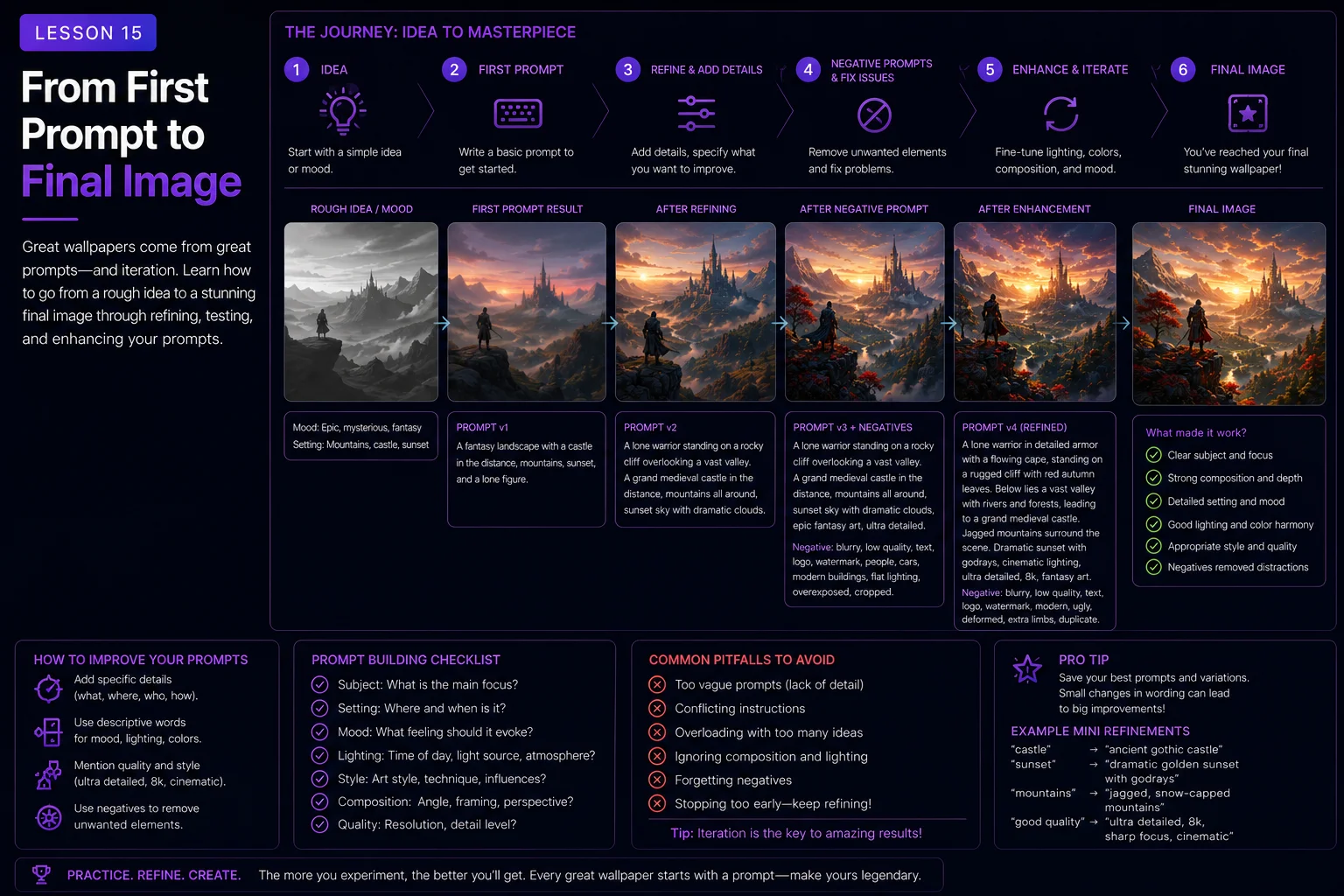
From First Prompt to Final Image
A strong AI wallpaper is rarely finished after the first prompt.
The first result is usually a starting point. It may have a good idea, nice lighting, or an interesting composition, but it may also have problems: bad cropping, strange details, clutter, fake text, weak mood, poor colors, or a subject that is not placed well for wallpaper use.
Good creators do not only write one prompt and hope for the best. They review the result, identify what works, fix what does not, and improve the prompt step by step.
In this lesson, you will learn a simple workflow for moving from a first prompt to a final Skinbase-ready wallpaper image.
The Iteration Mindset
Iteration means improving something through repeated versions.
Instead of expecting the first image to be perfect, think of each generation as feedback.
Ask:
What worked?
What failed?
What should stay?
What should change?
What needs to be clearer in the prompt?
Is the result usable as a wallpaper?
This mindset helps you stay in control. You are not just waiting for a lucky result. You are guiding the image toward a better final version.
Step 1: Start With a Clear First Prompt
The first prompt does not need to be perfect, but it should have a clear direction.
A useful first prompt should include:
Subject
Scene
Mood
Lighting
Style
Composition
Wallpaper format
Basic restrictions
Example first prompt:
A peaceful fantasy castle beside a mountain lake, wide 16:9 desktop wallpaper composition, soft sunrise lighting, calm magical atmosphere, cinematic fantasy digital painting style, clean sky reflection, no text, no logo, no watermark.
This is a strong starting point because it gives the AI enough guidance without becoming too complicated.
Weak first prompt:
cool fantasy wallpaper
This is too vague. If the result fails, it will be harder to know what to fix because the prompt did not give clear direction.
Step 2: Review the First Result
After generating the first image, do not immediately accept it.
Review it carefully.
Look at:
Subject clarity
Composition
Cropping
Lighting
Color palette
Background clutter
Text or logo artifacts
Anatomy problems
Overall wallpaper usability
A good review is specific.
Weak review:
This looks bad.
Better review:
The castle is too close to the edge, the sky is too busy, and the lake reflection is not clean enough for a wallpaper.
Specific feedback makes the next prompt stronger.
Step 3: Keep What Works
Before fixing problems, notice what already works.
Maybe the mood is good. Maybe the lighting is beautiful. Maybe the color palette feels right. Maybe the subject is strong but the composition needs improvement.
Useful questions:
Do I like the main subject?
Is the mood correct?
Is the style close to what I wanted?
Are the colors good?
Is there a detail worth preserving?
If something works, keep it in the next prompt.
Example:
Keep the soft golden sunrise lighting and calm magical atmosphere.
This helps the next version improve without losing the best parts of the first result.
Step 4: Identify the Main Problem
Do not try to fix everything at once.
Choose the biggest problem first.
Common first-result problems include:
Too much clutter
Wrong aspect ratio
Subject too close to the edge
Main subject too small
Bad cropping
Weak lighting
Confusing subject
Fake text or logos
Poor anatomy
Colors too harsh
Background too busy
Example:
The image is beautiful, but it is too crowded and does not have clean space for desktop icons.
Now the next prompt can target that problem.
Step 5: Refine the Prompt
Refining means changing the prompt based on what you learned from the first result.
If the image is too cluttered, add:
clean composition, calm negative space, detailed but uncluttered, simple atmospheric background
If the subject is cropped, add:
full subject visible, safe margins around the subject, no cropped subject, no subject touching the edges
If the image has fake text, add:
no readable text, no random letters, no logos, no watermark
If the colors are too strong, add:
balanced color palette, controlled saturation, soft contrast, no oversaturation
Example refinement:
First prompt:
A futuristic city skyline at night, neon blue and violet lighting, wide 16:9 wallpaper, no text, no watermark.
Problem:
The city is too busy and the whole image is filled with glowing signs.
Refined prompt:
A futuristic city skyline at night, wide 16:9 desktop wallpaper composition, city placed in the lower third, large clean dark sky above, controlled neon blue and violet lighting, sharp architectural silhouettes, detailed but uncluttered, no readable text, no random letters, no logos, no watermark.
The refined prompt is more specific and more wallpaper-friendly.
Step 6: Change One or Two Things at a Time
When improving a prompt, avoid changing everything at once.
If you change the subject, scene, style, lighting, composition, and restrictions all in one step, you may not know which change helped.
Better approach:
Fix composition.
Then fix lighting.
Then fix colors.
Then fix details.
Then prepare the final image.
Example:
Version 1:
A fantasy castle beside a lake.
Version 2 fixes composition:
A fantasy castle beside a lake, wide 16:9 desktop wallpaper composition, castle placed on the right third, large open sky on the left.
Version 3 fixes lighting:
A fantasy castle beside a lake, wide 16:9 desktop wallpaper composition, castle placed on the right third, large open sky on the left, soft golden sunrise lighting, gentle mist.
Version 4 fixes polish:
A fantasy castle beside a lake, wide 16:9 desktop wallpaper composition, castle placed on the right third, large open sky on the left, soft golden sunrise lighting, gentle mist, cinematic fantasy digital painting style, detailed but uncluttered, no text, no logo, no watermark.
Small changes make the process easier to control.
Step 7: Use Variations Carefully
Many AI tools can generate variations from a prompt or image.
Variations are useful when the idea is already close but not perfect.
Use variations when:
The mood is right
The style is right
The subject is good
You only need better composition or details
Do not rely on variations when the core idea is wrong.
If the image shows the wrong subject or wrong style, rewrite the prompt instead.
A useful rule:
Use variations to improve a good direction. Rewrite the prompt to fix a bad direction.
Step 8: Critique Like a Wallpaper User
When reviewing an image, do not only ask if it looks beautiful.
Ask if it works as a wallpaper.
Wallpaper critique questions:
Is there enough clean space?
Is the subject readable?
Is the image comfortable to look at full-screen?
Are the colors too harsh?
Is the composition balanced?
Are important details too close to the edge?
Would desktop icons still be visible?
Does the thumbnail still read clearly?
Are there any obvious AI artifacts?
A good gallery artwork is not always a good wallpaper. A good wallpaper needs usability.
Step 9: Fix Common Final Problems
Before choosing a final image, inspect the result carefully.
Check for:
Fake text
Hidden watermark-like marks
Strange signatures
Cropped subjects
Distorted faces
Bad hands
Extra limbs
Broken architecture
Messy technology
Blurry important details
Oversaturated colors
Noisy backgrounds
If the problem is small, you may fix it with editing, cropping, or regeneration.
If the problem is large, refine the prompt and generate again.
Example problem:
The character is good, but one hand is broken.
Possible prompt refinement:
simple standing pose, hands relaxed at the sides, no broken hands, no extra fingers, no distorted anatomy
Example problem:
The cyberpunk scene has fake signs everywhere.
Possible prompt refinement:
abstract neon light panels, no readable text, no random letters, no logos, no signs with writing
Step 10: Crop and Frame the Image
Even a good image may need final framing.
Cropping can help:
Improve composition
Remove bad edges
Protect the subject
Create the right aspect ratio
Make the image more wallpaper-friendly
But cropping can also hurt the image if it cuts off important details.
Before cropping, ask:
Does the subject remain complete?
Is the main idea still readable?
Does the image still have breathing room?
Does the crop match the intended wallpaper format?
For desktop wallpapers, common final formats include:
16:9
16:10
21:9
For mobile wallpapers, common final formats include:
9:16
3:4
4:5
If you know the target format before generating, include it in the prompt. This reduces the need for heavy cropping later.
Step 11: Upscale Only Good Images
Upscaling can make an image larger, but it does not automatically make a weak image good.
Upscale after the image already has:
Strong composition
Clear subject
Good mood
Clean details
No major artifacts
Correct aspect ratio or good crop potential
Do not upscale an image with major problems unless you plan to fix them first.
Bad idea:
Upscale an image with a distorted face, fake text, and bad cropping.
Better idea:
Regenerate or fix the image first, then upscale the best version.
Upscaling is a final polish step, not a replacement for good prompting.
Step 12: Prepare the Image for Skinbase
Before uploading to Skinbase, prepare the image like a finished artwork.
Check:
Is the resolution high enough?
Is the image clean and sharp?
Does it have obvious AI artifacts?
Is the subject readable in a thumbnail?
Does it work as a wallpaper?
Is the title clear?
Are the tags accurate?
Does the description match the image?
A good upload is not only the image file. It is also the presentation around it.
A strong Skinbase upload should have:
Clear title
Useful tags
Correct category
Short description
Clean preview
Good resolution
No visible watermarks or fake text
Before and After Workflow Example
Basic idea:
A robot in a futuristic city.
First prompt:
A robot standing in a futuristic city at night, neon lighting, wide 16:9 wallpaper, no text, no watermark.
First result problems:
Robot is too close to the edge
City is too cluttered
Neon signs contain fake text
No clean space for desktop icons
Refined prompt:
A sleek robot standing on a rooftop above a futuristic city at night, wide 16:9 desktop wallpaper composition, robot placed on the right third with full body visible, large clean dark sky on the left for desktop icons, neon blue and violet lighting, distant city lights below, clean sci-fi concept art style, detailed but uncluttered, no readable text, no random letters, no logos, no cropped limbs, no watermark.
Why the refined version is stronger:
The robot has better placement.
The full body is protected.
The city becomes background, not clutter.
The sky creates wallpaper space.
Fake text is discouraged.
The style is clearer.
This is the power of iteration.
Example: Fantasy Wallpaper Iteration
First prompt:
A fantasy castle in the mountains.
Possible result:
Nice castle, but too centered and too busy
No clean space
Lighting feels flat
Improved prompt:
A majestic fantasy castle built into a mountain cliff, wide 16:9 desktop wallpaper composition, castle placed on the right third, large open sky on the left, misty valley below, soft golden sunrise lighting, cinematic fantasy digital painting style, detailed but uncluttered, no text, no logo, no watermark.
Final check:
Castle readable?
Sky clean enough?
No fake text?
Good wallpaper balance?
Strong thumbnail?
If yes, this image may be ready for final preparation.
Example: Character Wallpaper Iteration
First prompt:
A fantasy warrior wallpaper.
Possible result:
Good armor
Cropped head
Broken hand
Busy background
Improved prompt:
A heroic fantasy warrior in silver armor with a red cape, standing on a rocky mountain pass, full body visible with safe margins, wide 16:9 desktop wallpaper composition, character placed on the right third, distant kingdom in the background, dramatic sunset rim lighting, cinematic fantasy illustration style, strong readable silhouette, no cropped head, no extra limbs, no broken hands, no distorted face, no text, no watermark.
Final check:
Is the full body visible?
Is the face clean?
Are the hands acceptable?
Is the background supporting the subject?
Does it work as a wallpaper?
Character images often need more iterations than landscapes, so review carefully.
Example: Pixel Art Wallpaper Iteration
First prompt:
Pixel art spaceship wallpaper.
Possible result:
Looks blurry
Too modern
Too much detail
Not enough retro feeling
Improved prompt:
A retro 16-bit pixel art spaceship flying above a blue alien planet, limited 32-color palette, crisp pixel edges, spaceship placed in the upper-right third, planet horizon in the lower third, large clean starfield on the left, nostalgic sci-fi computer art mood, wide 16:9 wallpaper composition, no blurry pixels, no photorealistic rendering, no text, no watermark.
Final check:
Are the pixels crisp?
Is the palette limited?
Is the silhouette readable?
Does it still feel like pixel art?
Is the wallpaper composition clean?
Retro prompts often improve when constraints become more specific.
A Simple Iteration Checklist
Use this checklist after each generated image.
Subject
Is the main subject clear?
Scene
Does the environment support the subject?
Composition
Is the subject placed well for wallpaper use?
Space
Is there clean space or negative space?
Lighting
Does the lighting support the mood?
Colors
Is the palette balanced and comfortable?
Style
Is the visual style consistent?
Problems
Are there artifacts, text, bad anatomy, clutter, or cropping issues?
Skinbase readiness
Would this look good in a gallery and as a wallpaper?
Beginner Workflow Formula
Use this workflow when creating AI wallpapers:
Write a clear first prompt.
Generate the first image.
Identify what works.
Identify the biggest problem.
Refine the prompt to fix that problem.
Generate again.
Repeat until the image is strong.
Crop or frame if needed.
Upscale only the best version.
Prepare title, tags, category, and description.
Upload only when the image feels finished.
This process turns prompting into a creative workflow, not a guessing game.
Skinbase Creator Tip
Keep your best prompts.
When a prompt produces a strong image, save it with notes:
What worked?
What style did it use?
What composition phrase helped?
What negative prompt cleaned it up?
What would you change next time?
Over time, you will build your own prompt library for fantasy, sci-fi, nature, characters, retro pixel art, and other wallpaper styles.
A good prompt library helps you create faster and more consistently.
Practice Exercise
Start with this simple prompt:
A cyberpunk city wallpaper.
Now improve it through iteration.
Version 1:
A cyberpunk city wallpaper, neon lights, night scene.
Problem:
Too vague, likely too much fake text and clutter.
Version 2:
A rainy cyberpunk city skyline at night, neon blue and pink lighting, wide 16:9 desktop wallpaper, no text, no watermark.
Problem:
Better, but still missing composition and clean space.
Version 3:
A rainy cyberpunk city skyline at night, wide 16:9 desktop wallpaper composition, city placed in the lower third, large clean dark sky above, neon blue and pink reflections on wet rooftops, cinematic atmosphere, detailed but uncluttered, no readable text, no random letters, no logos, no watermark.
This version is much more wallpaper-ready.
Now choose your own simple idea and create three versions:
Basic prompt
Improved prompt
Final wallpaper-ready prompt
Try this with a fantasy castle, mountain lake, sci-fi robot, white wolf, retro spaceship, or magical forest.
Key Takeaways
A final image is usually created through iteration, not one lucky prompt.
To move from first prompt to final image:
Start with a clear idea.
Review the result carefully.
Keep what works.
Fix the biggest problem first.
Change one or two things at a time.
Use negative prompts to reduce likely issues.
Crop and upscale only when the image is worth finishing.
Prepare the final image with good title, tags, category, and description.
A strong AI wallpaper workflow is simple: prompt, review, refine, generate again, polish, and prepare for upload.
In the next lesson, you will learn how to prepare AI wallpapers for Skinbase uploads with better titles, tags, descriptions, resolution checks, and quality review.
Lesson navigation
Continue in order
Previous lesson
Wallpaper Prompt Engineering for Skinbase Creators · Lesson 14
Negative Prompts and Common AI Image Problems
Learn how to use negative prompts and prevention phrases to reduce common AI image problems in wallpaper artwork.
Next lesson
Wallpaper Prompt Engineering for Skinbase Creators · Lesson 16
Preparing AI Wallpapers for Skinbase Uploads
Learn how to prepare AI-generated wallpapers for Skinbase with better quality checks, titles, tags, descriptions, and upload-ready presentation.